Background Remover for Product Photos
Remove a photo background and download a transparent PNG. Upload your product photo, review the cutout, then use it in a listing, layout or another edit. PNG, JPG and WebP inputs are supported.
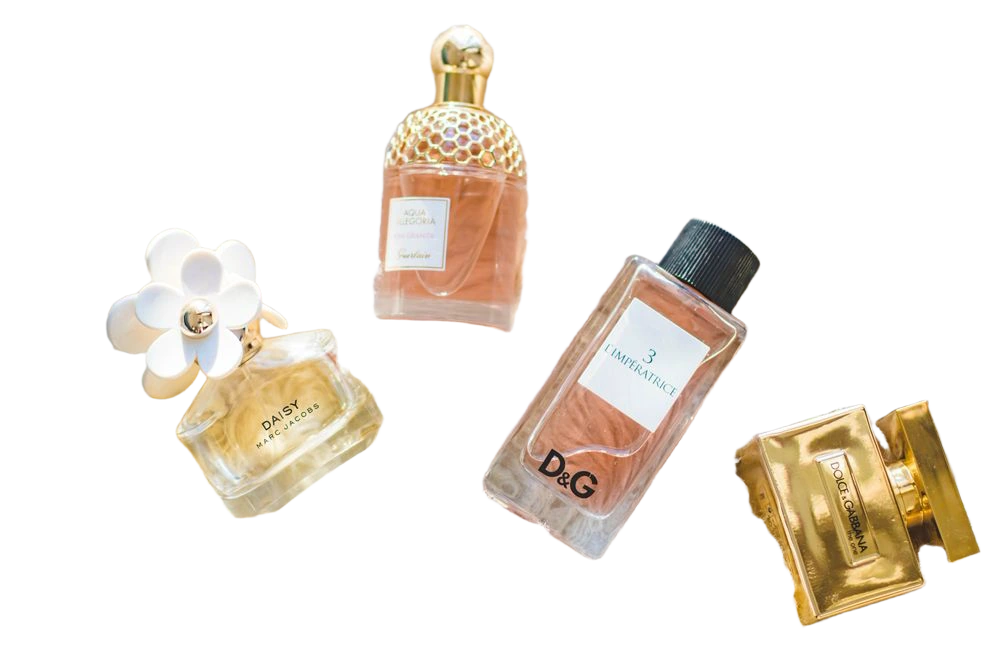
A product photo with its background removed
This is the actual cutout from one Kivue task using the product photo shown here. Move the comparison slider to inspect the edges. The checkerboard represents transparency in the PNG.
- Inspect hair, straps and other thin edges at full size.
- Check spaces inside handles and between separate objects.
- Keep the transparent PNG when moving the cutout into a layout.

Prepare a product image without redrawing the product
A cutout gives you a separate subject to place in a design. It does not create a new product angle, replace a missing label or turn a blurred source into a detailed photograph.
Product listings
Remove a distracting table or room behind the product. Review the edge and label before placing the cutout on a background that meets your marketplace requirements.
Catalogs and promotional layouts
Place a transparent cutout beside copy, a price or other products. Keep a copy of the original photo so the design can be revised later.
Portraits and clothing
Separate a person or garment for a layout. Fine hair, lace, glass and reflections need closer review than a solid, clearly separated subject.
How to remove a photo background in Kivue
Upload the original
Choose one PNG, JPG or WebP image, up to 10 MB. A clear outline and an uncropped subject give you more useful edges to work with.
Remove and review
Check the displayed credit cost, start the task and inspect the preview. Pay attention to product details, transparent areas and fine edges.
Download the PNG
Save the result as a PNG to retain transparency. You can also continue editing through the controls next to the result.
Input files and transparent output
Use a source where the whole subject is visible. Reflective, transparent or low-contrast objects can leave incomplete edges. Background removal cannot restore parts already cropped out of the original.
- Input formats
- PNG, JPG and WebP
- Upload limit
- 10 MB per image
- Output
- PNG with transparency
- Processing cost
- 2 credits per image
Background removal or object removal?
Choose the edit by what should remain in the image. These tools solve different problems.
| Operation | What it changes | Use it for |
|---|---|---|
| Background Remover | Keep the subject and remove its surroundings. | Transparent product cutout |
| Magic Eraser | Remove a selected object while keeping the scene. | An object-free area in the photo |
| Image Expander | Generate new surroundings outside the image edges. | A wider or taller composition |
Frequently asked questions
How do I remove the background from a product photo online?
Open the background remover using the button on this page, upload your photo and check the credit cost before starting. Review the edges in the preview, then download the PNG. You need to sign in to run and save a task.
Can I download a product image with a transparent background?
Yes. Background removal returns a PNG. Keep that format to preserve transparency; converting the result to JPEG flattens the transparent area onto a background.
Which image formats and file sizes can I upload?
The upload interface accepts PNG, JPG and WebP images up to 10 MB each. Use the clearest original available rather than an enlarged thumbnail or screenshot.
Will background removal change the product color or label?
The purpose is to isolate the subject, not redesign it. Automatic cutouts can still lose fine edges or semitransparent details. Compare the result with the original before using it in a listing.
Can I put the cutout on a white background?
A transparent PNG can be placed on a white background in your layout or editor. The background removal task itself returns transparency; check your final exported file before uploading it to a marketplace.
Is the background remover free to use?
You can read this guide without signing in. Processing uses Kivue credits. The tool shows the current credit cost before you submit; available rewards or account credits depend on your account.
Start with your original product photo
Upload, inspect the cutout and keep the transparent PNG.