Text to Image
Create images from a written description. Choose a model and output format in Kivue, review the credit quote, and save the generated images in your project.
Credit cost depends on the selected model and settings. Check the amount shown before submitting.
FROM INPUT TO PROJECT
What can you create with Text to Image?
Create images from a written description. Choose a model and output format in Kivue, review the credit quote, and save the generated images in your project.
VISUAL REFERENCES
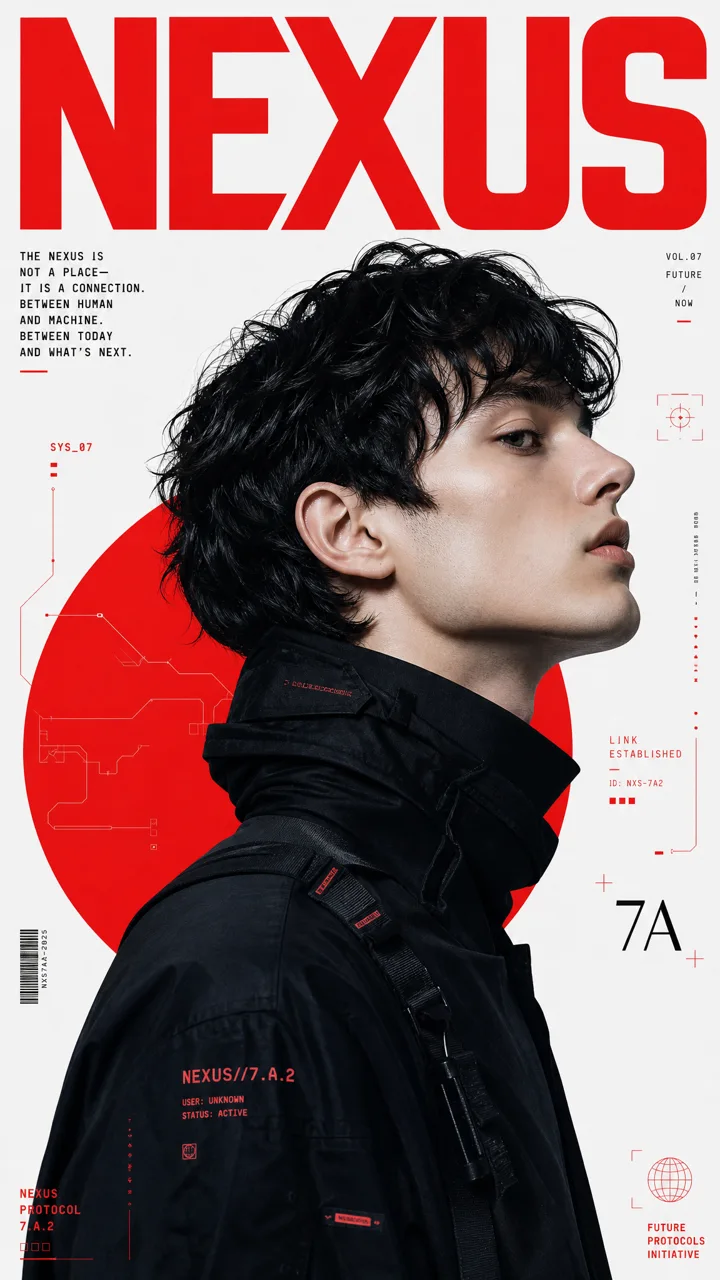
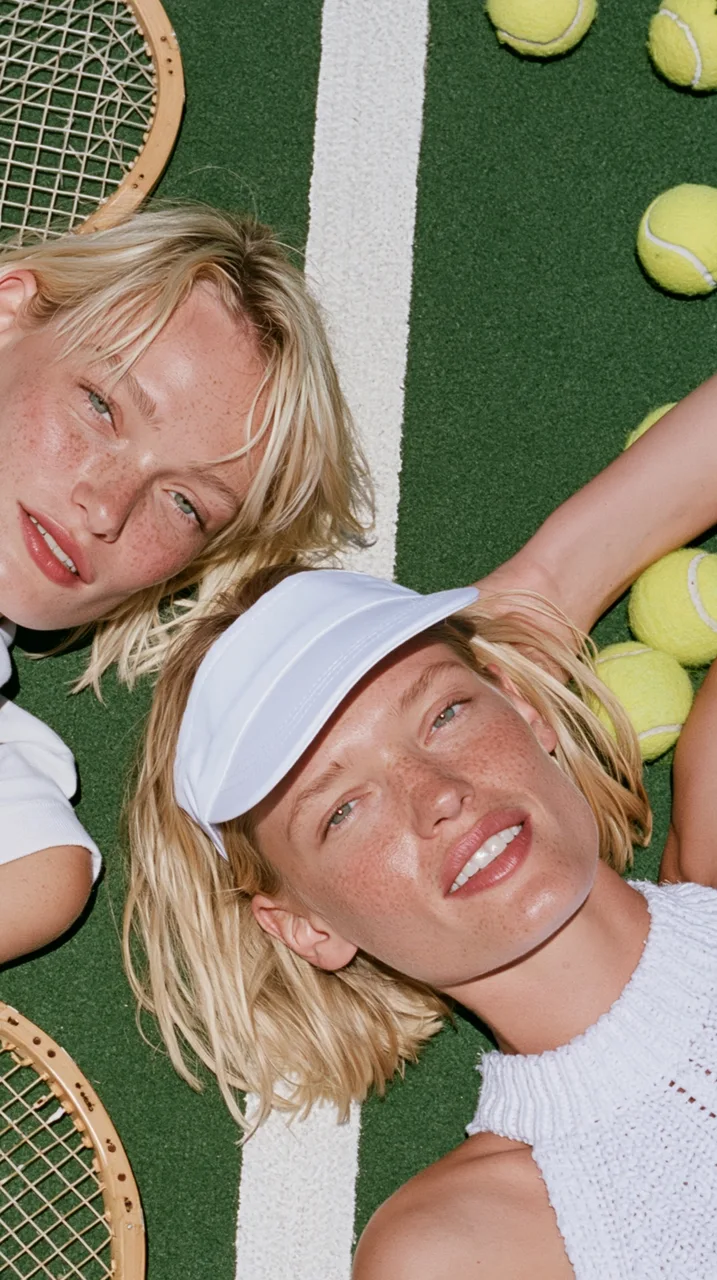
Browse 2 ideas from the Kivue prompt library
Open a cover to inspect its template. These are library references, not a benchmark of this tool or model.
What output settings does Text to Image support in Kivue?
18 model configurations are available for this entry. Each row describes one configuration; do not combine settings from different rows.
| Model option | Output size | Aspect ratio |
|---|---|---|
| Nano Banana Pro | 1K, 2K, 4K | 1:1, 4:3, 3:2, 16:9, 9:16, 2:3, 3:4, 21:9 |
| Nano Banana 2 | 1K, 2K, 4K | 1:1, 4:3, 3:2, 16:9, 9:16, 2:3, 3:4 |
| Nano Banana 2.1 | 1K, 2K, 4K | 1:1, 16:9, 9:16, 4:3, 3:4, 3:2, 2:3, 5:4, 4:5, 21:9, 1:4, 4:1, 1:8, 8:1 |
| Nano Banana Pro Fast | 1K, 2K, 4K | 1:1, 4:3, 3:2, 16:9, 9:16, 2:3, 3:4, 5:4, 4:5, 21:9 |
| GPT Image 2.5 Flare | 1K, 2K, 4K | 1:1, 4:3, 3:2, 16:9, 9:16, 2:3, 3:4, 5:4, 4:5, 21:9 |
| GPT Image 2.5 Sunburst | 1K, 2K, 4K | 1:1, 4:3, 3:2, 16:9, 9:16, 2:3, 3:4, 5:4, 4:5, 21:9 |
| GPT Image 2.5 Flare Pro | 1K, 2K, 4K | 1:1, 4:3, 3:2, 16:9, 9:16, 2:1, 1:2, 2:3, 3:4, 5:4, 4:5, 21:9, 9:21 |
| GPT Image 2.6 Flare | 1K, 2K, 4K | 1:1, 3:2, 2:3, 16:9, 9:16 |
| Grok Image 2.0 | 1K | 1:1, 2:3, 3:4, 3:2, 4:3, 16:9, 9:16 |
| GPT Image 2.5 Sunburst Pro | 1K, 2K, 4K | 1:1, 4:3, 3:2, 16:9, 9:16, 2:1, 1:2, 2:3, 3:4, 5:4, 4:5, 21:9, 9:21 |
| GPT Image 2.6 Sunburst | 1K, 2K, 4K | 1:1, 3:2, 2:3, 16:9, 9:16 |
| GPT Image 2 | 1K, 2K, 4K | 1:1, 4:3, 3:2, 16:9, 9:16, 2:3, 3:4, 21:9 |
| GPT Image 2 Pro | 1K, 2K, 4K | 1:1, 4:3, 3:2, 16:9, 9:16, 2:3, 3:4, 21:9 |
| Wan 2.7 Pro | 1K, 2K, 4K | 1:1, 4:3, 16:9, 9:16, 3:4 |
| Seedream 5.5 | 1K, 1.5K, 2K | 1:1, 2:3, 3:2, 3:4, 4:3, 9:16, 16:9, 21:9 |
| Seedream 5.0 Pro | 1K, 2K | 1:1, 4:3, 3:2, 16:9, 9:16, 2:3, 3:4, 21:9 |
| Seedream 5.0 Lite | 2K, 3K | 1:1, 4:3, 3:2, 16:9, 9:16, 2:3, 3:4, 21:9 |
| Seedream 4.5 | 2K, 4K | 1:1, 4:3, 3:2, 16:9, 9:16, 2:3, 3:4, 21:9 |
These are Kivue integration settings, not a claim about every feature offered by the model developer. Reference modes can impose additional limits.
Source: Kivue current model configuration. The generator quote remains the price to review before submission.
How should you prepare a Text to Image request?
Example prompt to adapt to your input:
Describe a ceramic coffee cup on a kitchen counter, morning light from the left, no text. Keep the cup as the main subject.
Start without reference files. Specify the subject, composition and intended use; use image-to-image when an existing product must guide the result.
Start with 1 result. Keep the same reference and change one setting at a time when comparing compositions or movement.
How do Kivue and alternative services organize this workflow?
This 3-service comparison covers public entry points and workflow design. It does not rank output quality, speed or price.
| Service | Entry or inputs | Workflow described on the source page |
|---|---|---|
| Kivue | Prompt and model-supported images | Nano Banana Pro lists 1K, 2K, 4K. Select a model and check the task quote before submitting. |
| Pollo AI | Image-generation entry | Its public navigation links model pages and separate image and video tools. |
| Clipdance | Text, image and reference-video entries | Its public navigation separates video workflows, image workflows and AI tools. |
Public competitor pages checked October 30, 2026. A listed entry is not evidence of an identical underlying model. Kivue-specific limits are documented in the configuration above.
How do you use Text to Image in Kivue?
Follow these 3 steps. Review the settings for this task rather than assuming a previous task used the same parameters.
- Prepare the input. Describe the subject, composition and intended changes. Add references when required by your workflow.
- Choose the output. Check the available settings and displayed credit quote. If the workbench is unavailable, it cannot accept a new request.
- Inspect and save. Wait for the completed task, review the result against the input, and save the version you intend to use.
What should you check before publishing the result?
Inspect images at 100% zoom. For video, inspect the start, middle and end; a correct poster frame does not establish that the whole clip is correct.
Compare product geometry, printed text, labels and repeated patterns against the references. Image generation can redraw details even when the prompt asks it to preserve them.
Frequently asked questions about Text to Image
These 4 answers cover input preparation, output checks, cost and availability.
Which resolutions and aspect ratios can I select for Text to Image in Kivue?
Nano Banana Pro lists 1K, 2K, 4K. Its listed ratios include 1:1, 4:3, 3:2, 16:9. These settings describe this Kivue configuration. Other variants and input modes can differ; check the form for the allowed combination.
How should I write a prompt for Text to Image for a product campaign?
Start without reference files. Specify the subject, composition and intended use; use image-to-image when an existing product must guide the result.
How many credits will one Text to Image generation use?
The form calculates a quote from the selected model, output settings and quantity. Review that amount before submitting. A resolution listed on this page is not a fixed-price promise.
Does Text to Image reproduce my product reference without changing any details?
No exact-match guarantee applies. Reference material guides generation, but shape, print, text or identity can change. Compare the output with the source before commercial use.