Product scene
Describe a set, light direction and product position.
Create GPT Image 2 images in Kivue from a scene description or an image-led brief. Choose the standard or Pro option, select 1K, 2K or 4K, and develop product compositions, illustrated scenes and campaign artwork in one project.
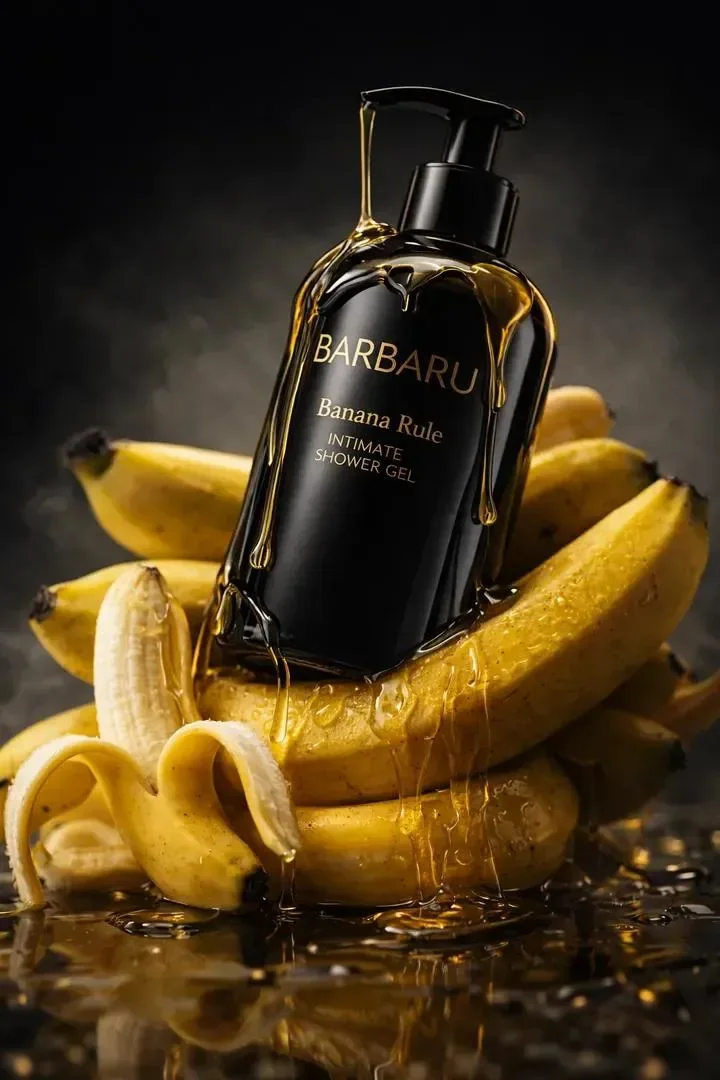
Write the subject, camera position, light source and background as one brief. The 1:1, 4:3 and 3:2 options give different room around a product. Keep the requested viewpoint consistent with your reference.
Try: An overhead photograph of a stationery set on beige paper, three objects, soft shadows, no extra text.
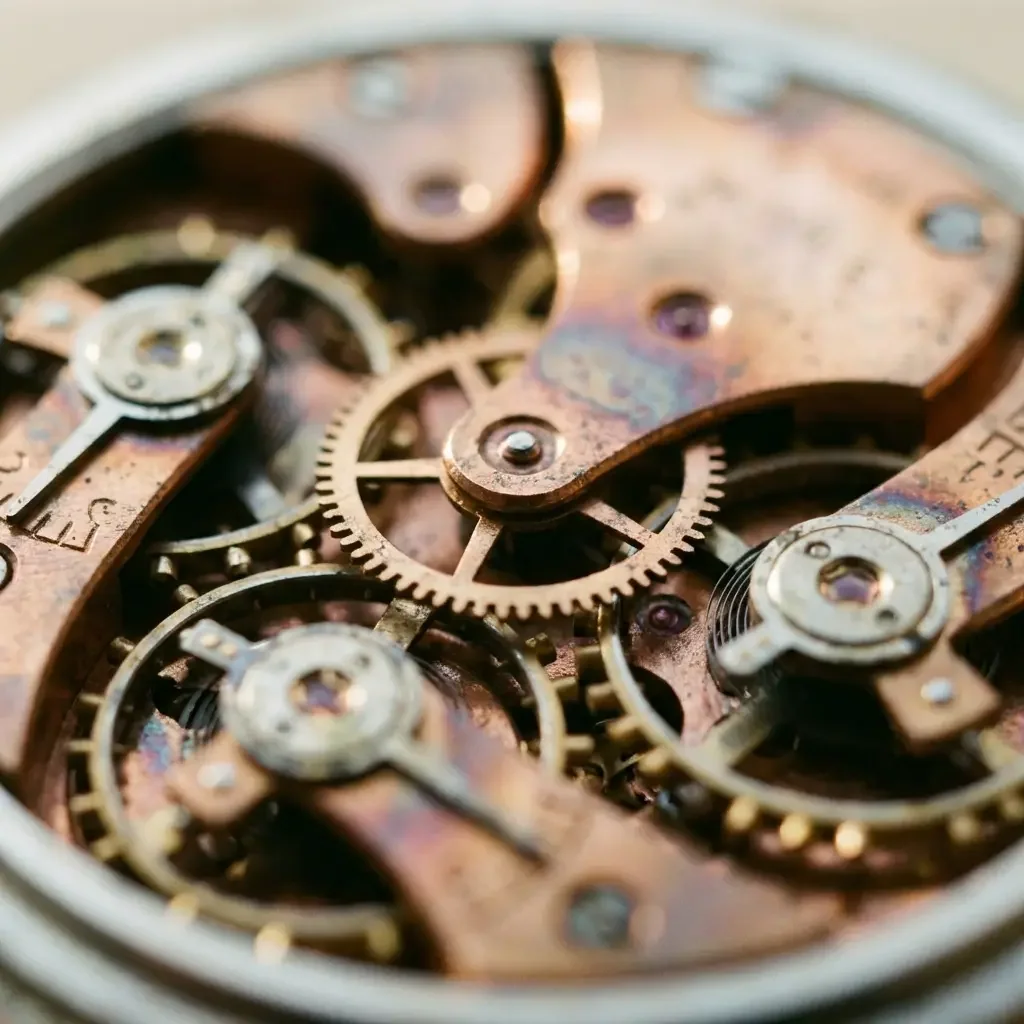
When you bring a reference into the input, state which details to retain and which to change. Kivue connects 2 GPT Image 2 variants; both list the same 1K, 2K and 4K size choices.
A revision is a new generated result; compare details against the original.
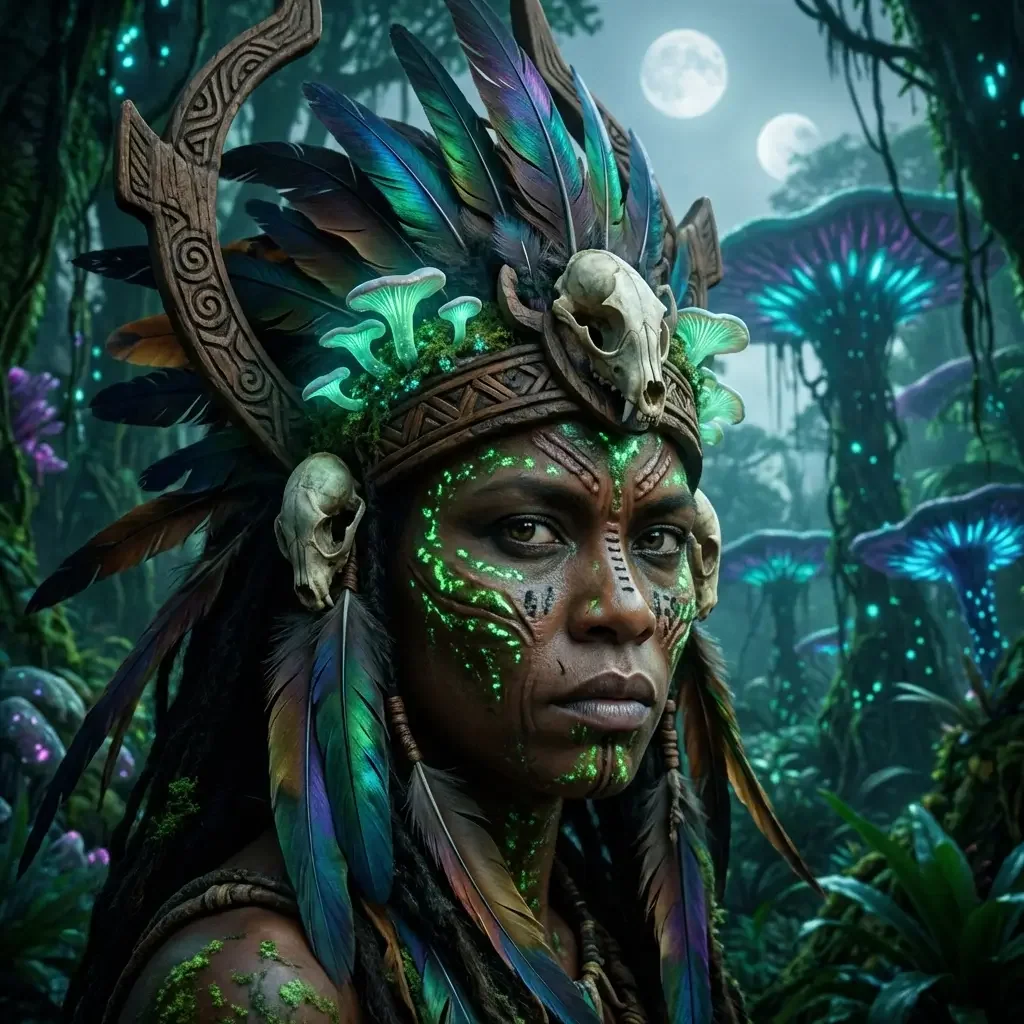
The standard and Pro entries each list 8 explicit ratios, including 21:9 and 9:16. This lets you compare a request at the same size and format instead of changing several settings at once.
Use the live quote for price comparison; there is no guaranteed speed difference on this page.
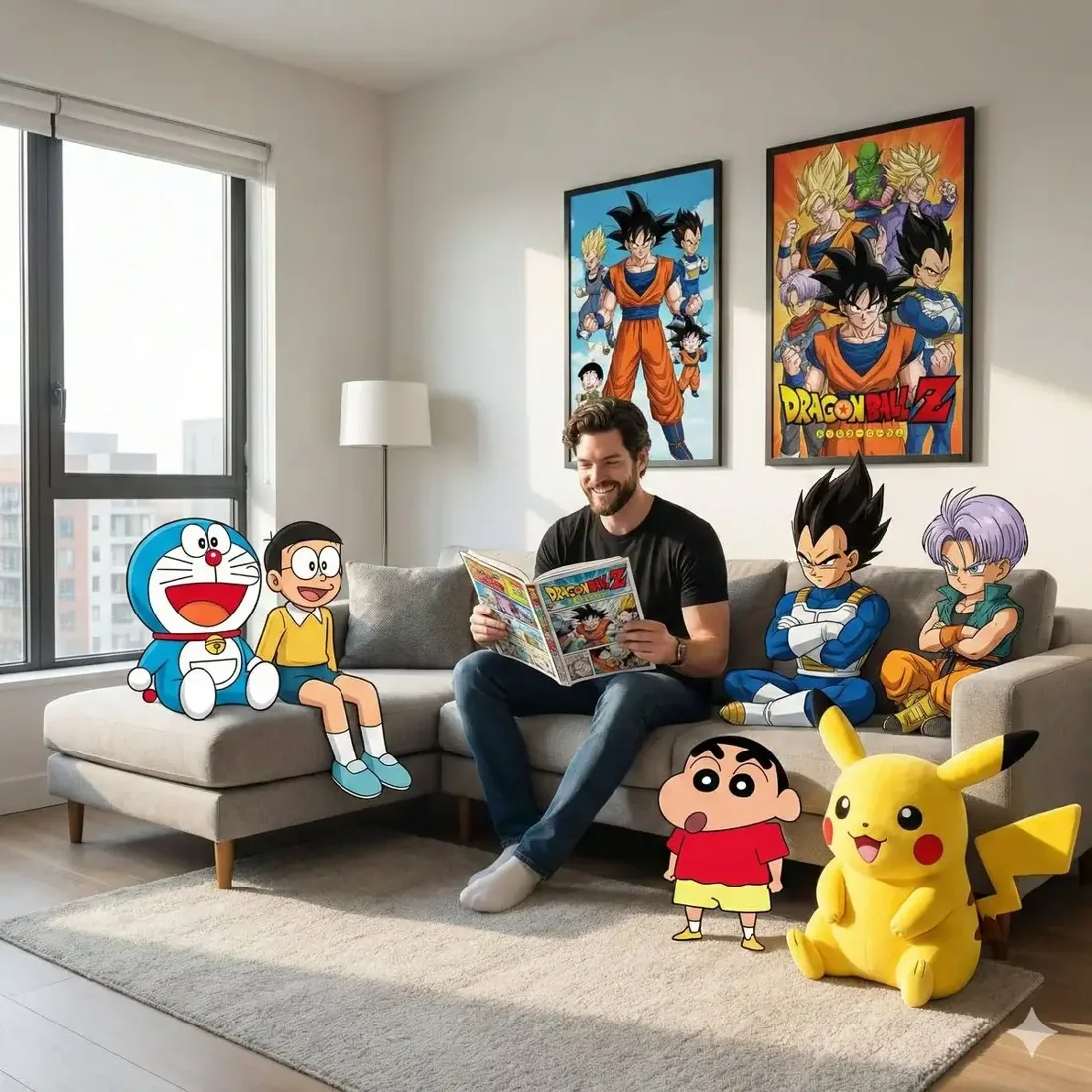
Use 9:16 for a vertical composition, 16:9 for a presentation frame or 1:1 for a listing. The 4K setting is available when you want to request a larger output tier.
Read generated labels and inspect edges at delivery size before publishing.
| Model option | Output sizes | Aspect ratios | Format choices |
|---|---|---|---|
| GPT Image 2 | 1K, 2K, 4K | 8 fixed ratios | Auto · 1:1 · 16:9 · 9:16 |
| GPT Image 2 Pro | 1K, 2K, 4K | 8 fixed ratios | Auto · 1:1 · 16:9 · 9:16 |
Create an initial image and develop the next version.
1K, 2K, 4K are listed across the model options.
8 explicit ratios across these options, plus Auto.
2 model options on this page.
Describe the subject, viewpoint, setting and light source together.
Check the displayed quote after changing engine, size or quantity.
Review completed images with the conversation and project materials.
| Model option | Output tiers | Aspect ratios |
|---|---|---|
| GPT Image 2 | 1K, 2K, 4K | 8 explicit + Auto |
| Seedream 4.5 | 2K, 4K | 8 explicit + Auto |
| GPT Image 2.5 Flare | 1K, 2K, 4K | 10 explicit + Auto |
Describe a set, light direction and product position.
Explore characters and settings from a visual brief.
Use a prior image to guide the next composition.
Prepare your input, choose the output, and review the result.
Write the subject, composition and style. Include exact wording if the image needs text.
Choose the model option, resolution and aspect ratio. Review the credit quote before submitting.
Check text and product details at full size. Save the image or use it as a reference for another edit.
Answers about inputs, settings and creating in Kivue.
Turn your brief or reference into an image. Choose settings and check the quote before generating.
Start creating