E-commerce artwork
Combine a product reference with a described studio setting.
Generate GPT Image 2.5 images in Kivue with Flare, Sunburst and their Pro options. Choose 1K, 2K or 4K, write a visual brief and compare supported formats before creating product scenes, portraits or campaign graphics.
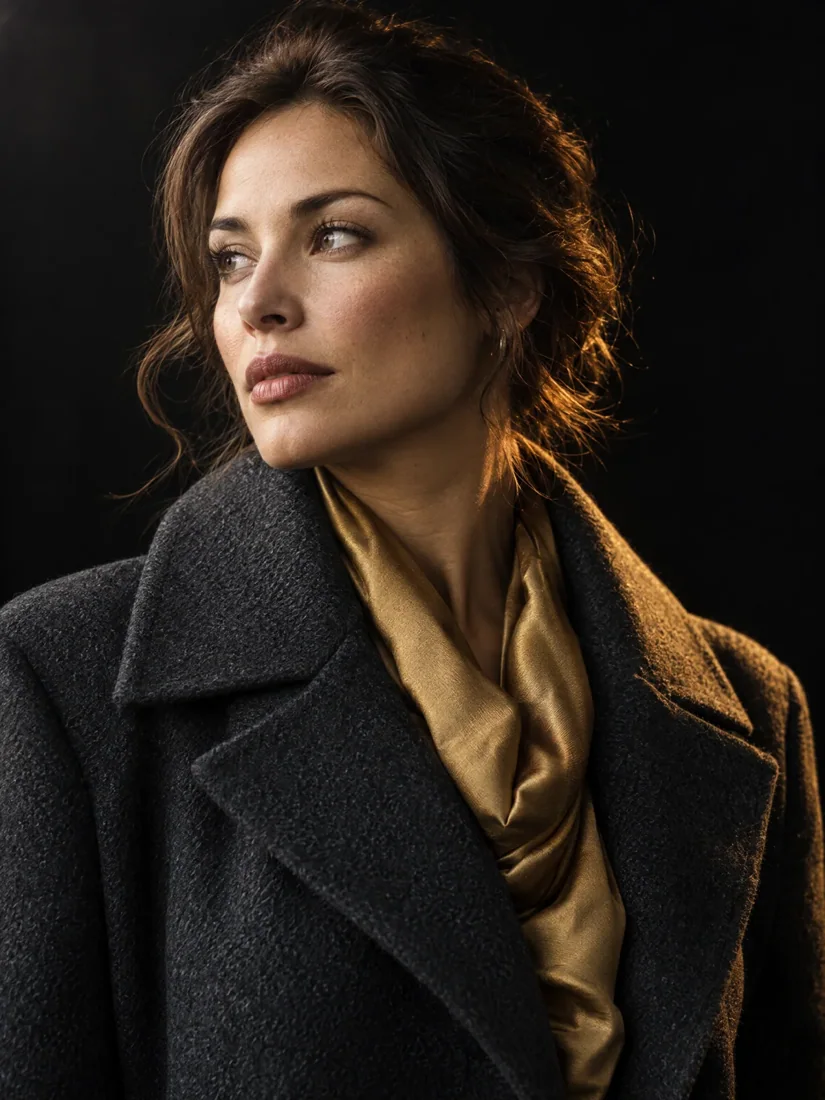
Specify a subject, viewpoint and lighting setup, then describe any text or layout constraints. Use 1:1 for a product frame or 16:9 when a scene needs lateral space.
Try: A side view of a running shoe on a concrete step, low camera angle, morning light, no decorative lettering.
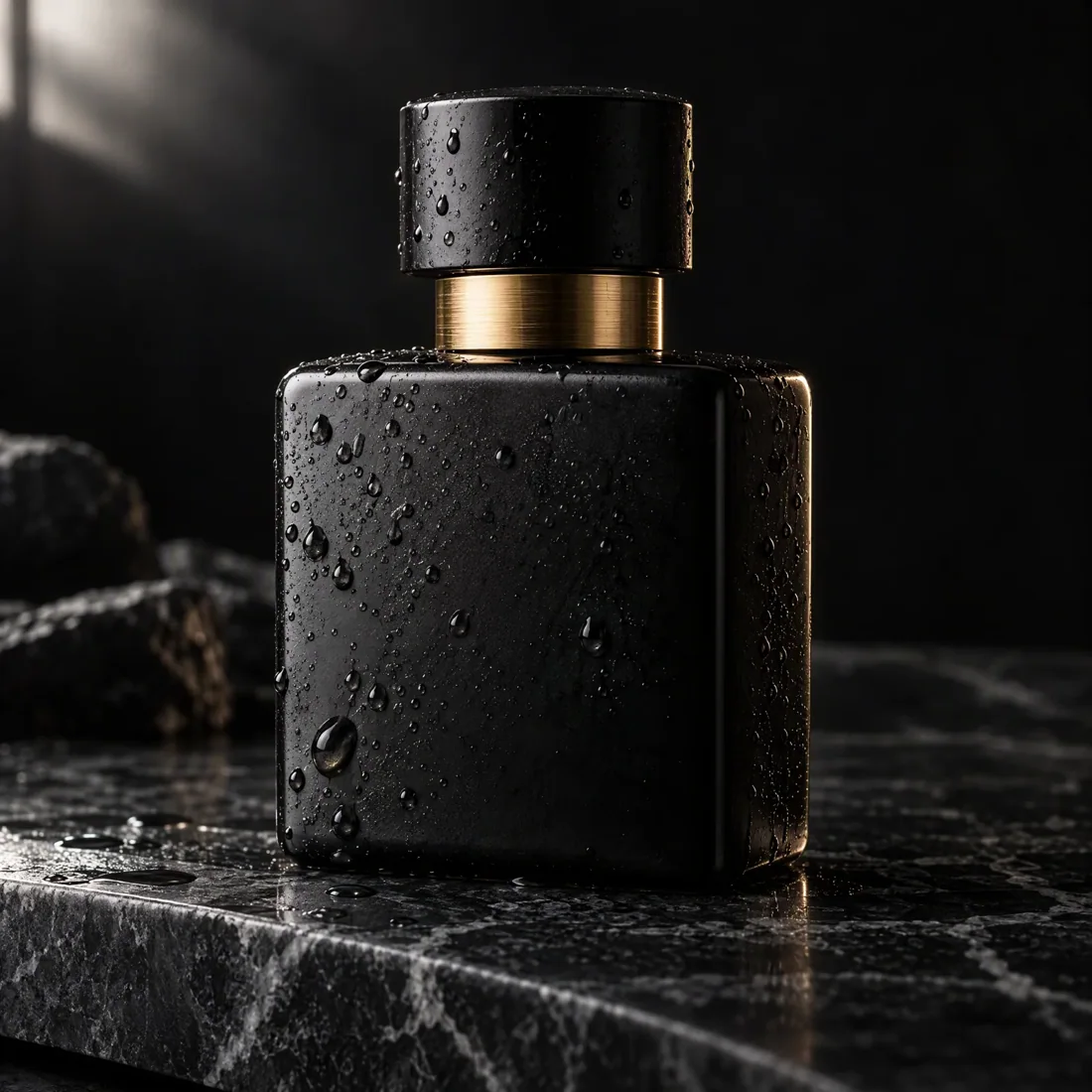
Kivue connects 4 options: Flare, Sunburst, Flare Pro and Sunburst Pro. All list 1K, 2K and 4K. Compare the quote and supported format for the selected option rather than assuming their names establish a benchmark.
Choose a variant before configuring the rest of the request.
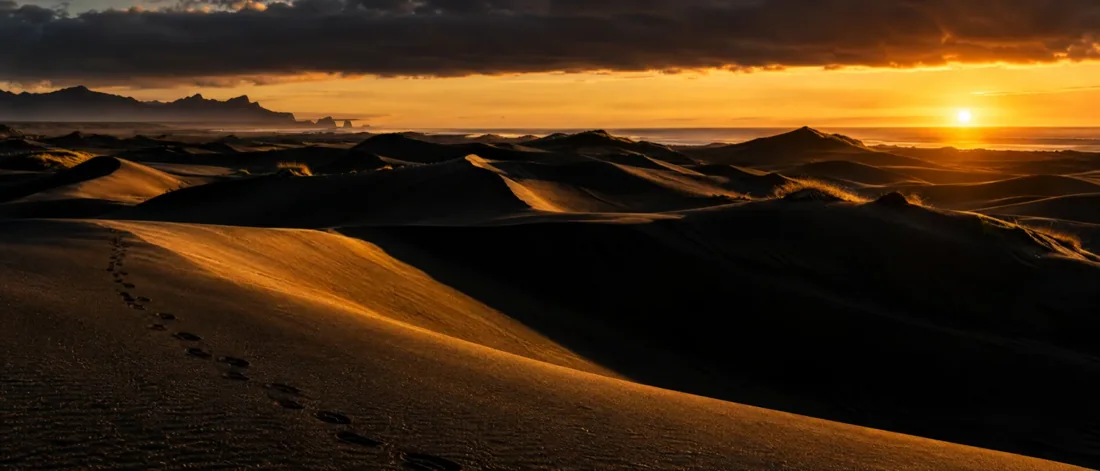
Flare and Sunburst list 10 explicit ratios; the Pro options list 13, adding formats such as 2:1, 1:2 and 9:21. Select the format before placing the subject and requested copy.
Available ratios can differ between options even when both are labelled 4K.
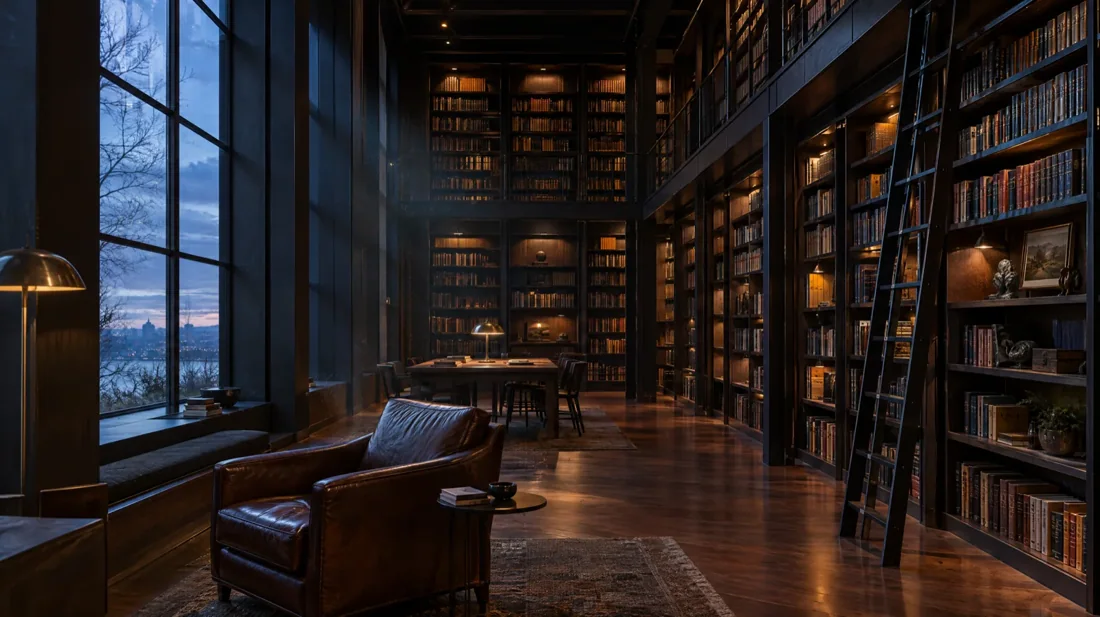
Use the previous result to explain one change at a time: lighting, setting or framing. Retain the 1:1 ratio while comparing a background change, then make a separate vertical version if required.
Review small details after every edit; retained references do not guarantee identical pixels.
| Model option | Output sizes | Aspect ratios | Format choices |
|---|---|---|---|
| GPT Image 2.5 Flare | 1K, 2K, 4K | 10 fixed ratios | Auto · 1:1 · 16:9 · 9:16 |
| GPT Image 2.5 Sunburst | 1K, 2K, 4K | 10 fixed ratios | Auto · 1:1 · 16:9 · 9:16 |
| GPT Image 2.5 Flare Pro | 1K, 2K, 4K | 13 fixed ratios | Auto · 1:1 · 16:9 · 9:16 |
| GPT Image 2.5 Sunburst Pro | 1K, 2K, 4K | 13 fixed ratios | Auto · 1:1 · 16:9 · 9:16 |
Flare and Sunburst options in one image workflow.
1K, 2K, 4K are listed across the model options.
13 explicit ratios across these options, plus Auto.
4 model options on this page.
Describe the subject, viewpoint, setting and light source together.
Check the displayed quote after changing engine, size or quantity.
Review completed images with the conversation and project materials.
| Model option | Output tiers | Aspect ratios |
|---|---|---|
| GPT Image 2.5 Flare | 1K, 2K, 4K | 10 explicit + Auto |
| Seedream 4.5 | 2K, 4K | 8 explicit + Auto |
| Nano Banana Pro | 1K, 2K, 4K | 8 explicit + Auto |
Combine a product reference with a described studio setting.
Direct camera angle, wardrobe context and lighting.
Create separate compositions for square and vertical placements.
Prepare your input, choose the output, and review the result.
Write the subject, composition and style. Include exact wording if the image needs text.
Choose the model option, resolution and aspect ratio. Review the credit quote before submitting.
Check text and product details at full size. Save the image or use it as a reference for another edit.
Answers about inputs, settings and creating in Kivue.
Turn your brief or reference into an image. Choose settings and check the quote before generating.
Start creating