Fashion motion
Plan fabric movement, a walk or a controlled change in pose.
Generate MiniMax H3 videos from text, images or reference media in Kivue. Compare H3, Max and Max Turbo settings, including the H3 connection’s 2K output option, before submitting your shot.
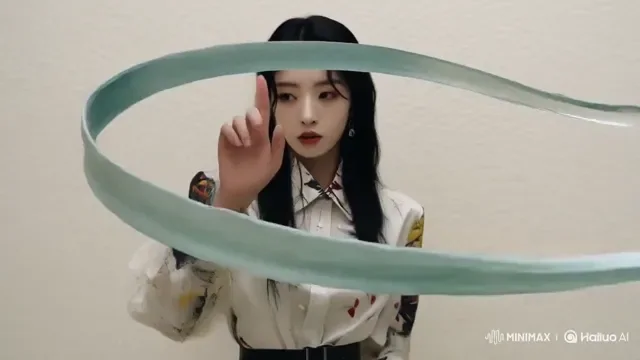
H3 supports a 4–15 second duration range, while Max and Max Turbo start at 5 seconds. Describe an ordered action with a specific ending, then decide whether the camera should follow the subject or remain fixed.
Prompt idea: A dancer unfolds a silk scarf beside a studio window. Track the hands, then widen to show the full pose.
The reference workflow offers up to 9 images, plus separate limits of 3 video and 3 audio references. An image can establish appearance while a clip demonstrates movement. First/last-frame mode instead defines 2 frame positions.
Uploading audio as a reference is not the same as receiving a generated soundtrack. Keep those expectations separate.
The H3 connection lists 768p and 2K. Max and Max Turbo list 480p and 768p. All three expose square 1:1, portrait 9:16, landscape 16:9 and automatic framing in Kivue. Choose the variant that actually offers the output you need.
The words Max or Turbo do not imply a measured quality or latency advantage for every request. Compare using a consistent brief.
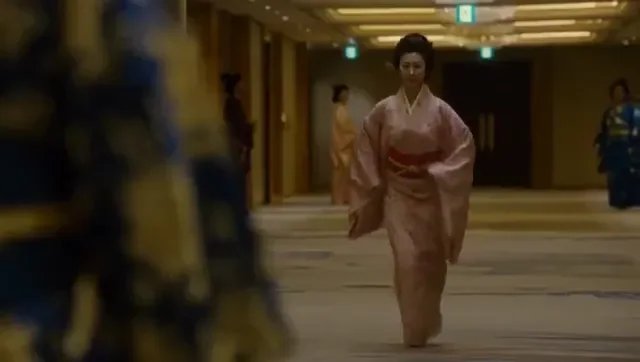
The current H3 family connections do not expose a generated-audio toggle. Use the 8-second default to judge subject movement, continuity and framing, then decide how the returned clip fits the rest of your edit.
Review the entire clip before adding voiceover or music in your finishing workflow.
| Model option | Output sizes | Duration | Input modes |
|---|---|---|---|
| MiniMax H3 | 768p, 2k | 4–15 seconds | Text / image · First & last frame · References |
| MiniMax H3 Max | 480p, 768p | 5–15 seconds | Text / image · First & last frame · References |
| MiniMax H3 Max Turbo | 480p, 768p | 5–15 seconds | Text / image · First & last frame · References |
Plan motion with image, video and audio references across three variants.
Plan a 4–15 second scene around a subject, an action and a camera direction.
The primary MiniMax H3 connection lists 768p, 2k.
Choose from 3 fixed aspect ratios: 1:1, 9:16, 16:9.
Use the selected mode’s image inputs to establish composition and subject appearance.
No generated-audio toggle is exposed by this connection; audio references, where supported, are a separate input.
Keep the prompt, references and returned result in your Kivue project for further work.
| Model | Resolution choices | Duration and input limits | Generation modes |
|---|---|---|---|
| MiniMax H3 | 768p, 2k | 4–15s | Text/image / First/last frame / References |
| MiniMax H3 Max | 480p, 768p | 5–15s | Text/image / First/last frame / References |
| MiniMax H3 Max Turbo | 480p, 768p | 5–15s | Text/image / First/last frame / References |
Plan fabric movement, a walk or a controlled change in pose.
Use a motion example alongside a subject image.
Evaluate the H3 2K option and other variant settings on a project shot.
Prepare your input, choose the output, and review the result.
Write the subject, action and camera movement. Upload references supported by your selected mode.
Select the clip length, resolution and format, then check the credit quote.
Watch the clip, download it or continue editing from the result in your project.
Answers about inputs, settings and creating in Kivue.
Turn your prompt or reference into a video. Choose settings and check the quote before generating.
Start creating