Product editorial
Explore a product with a surface, light source and props.
Create Seedream 5.0 images in Kivue using the connected Lite option. Choose 2K or 3K output, set a composition and describe your product, character or scene. Seedream 5.0 Pro has a separate page with its own available sizes.
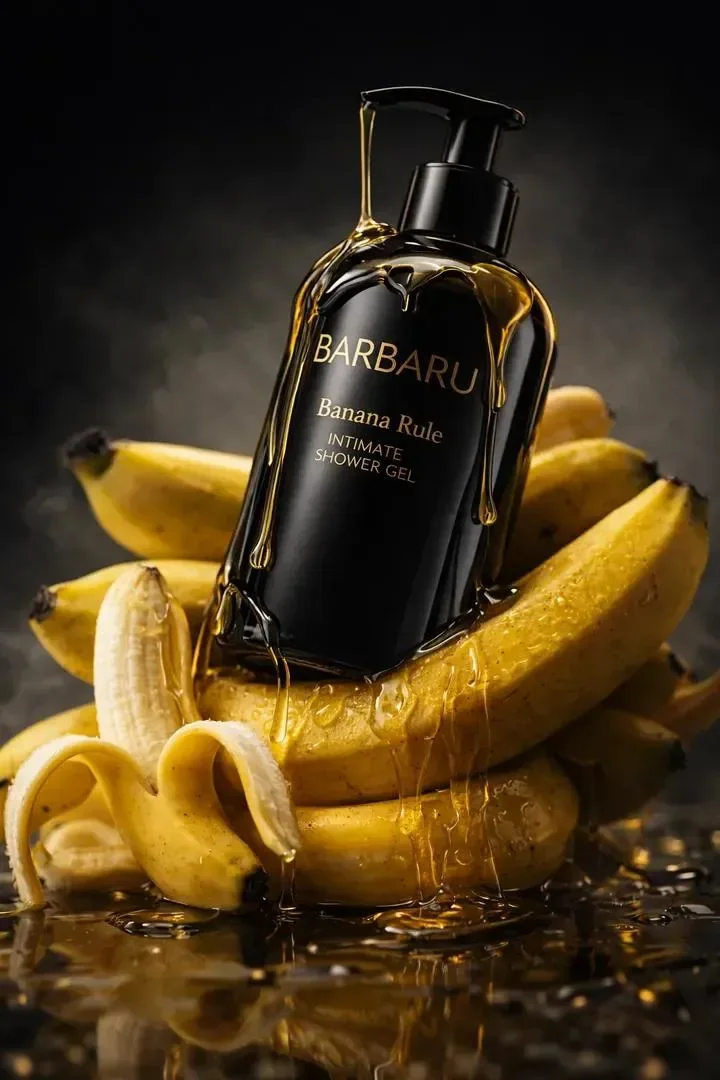
Explain the subject and set before naming the visual treatment. A 4:3 layout leaves room for a product and supporting objects; 3:4 suits a portrait composition. The connected Lite option offers 2K and 3K.
Try: A linen shirt folded on a sand-coloured table, natural side light, close framing, minimal props.
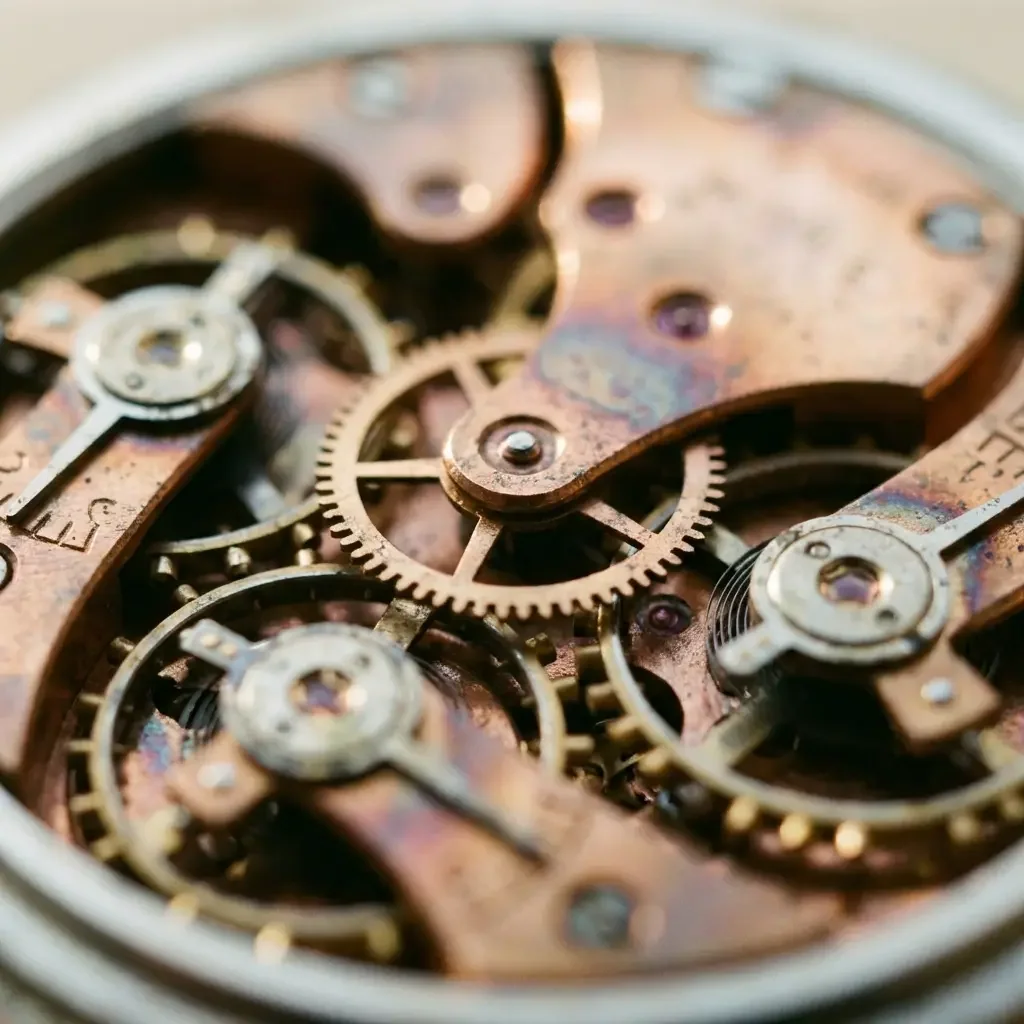
Seedream 5.0 Lite lists 8 explicit ratios in Kivue, from 1:1 to 21:9. Choose a wide banner or portrait image before asking for empty copy space, otherwise the focal point can end up in the wrong area.
For a 9:16 composition, specify whether the product belongs in the upper or lower half.
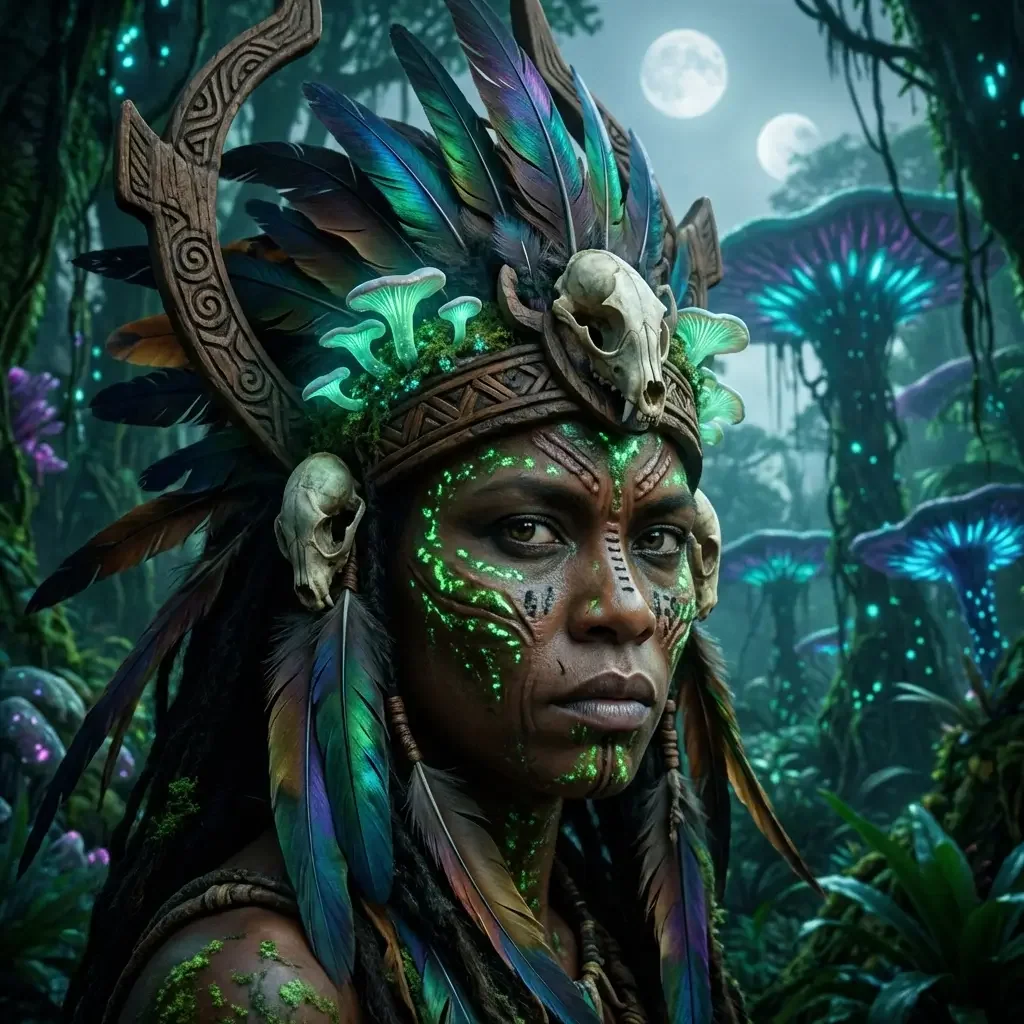
This page uses Seedream 5.0 Lite at 2K or 3K. The separate Seedream 5.0 Pro entry offers 1K or 2K. Both list 8 explicit ratios, but their sizes are not interchangeable.
Pro does not imply a 4K option in the current Kivue configuration.
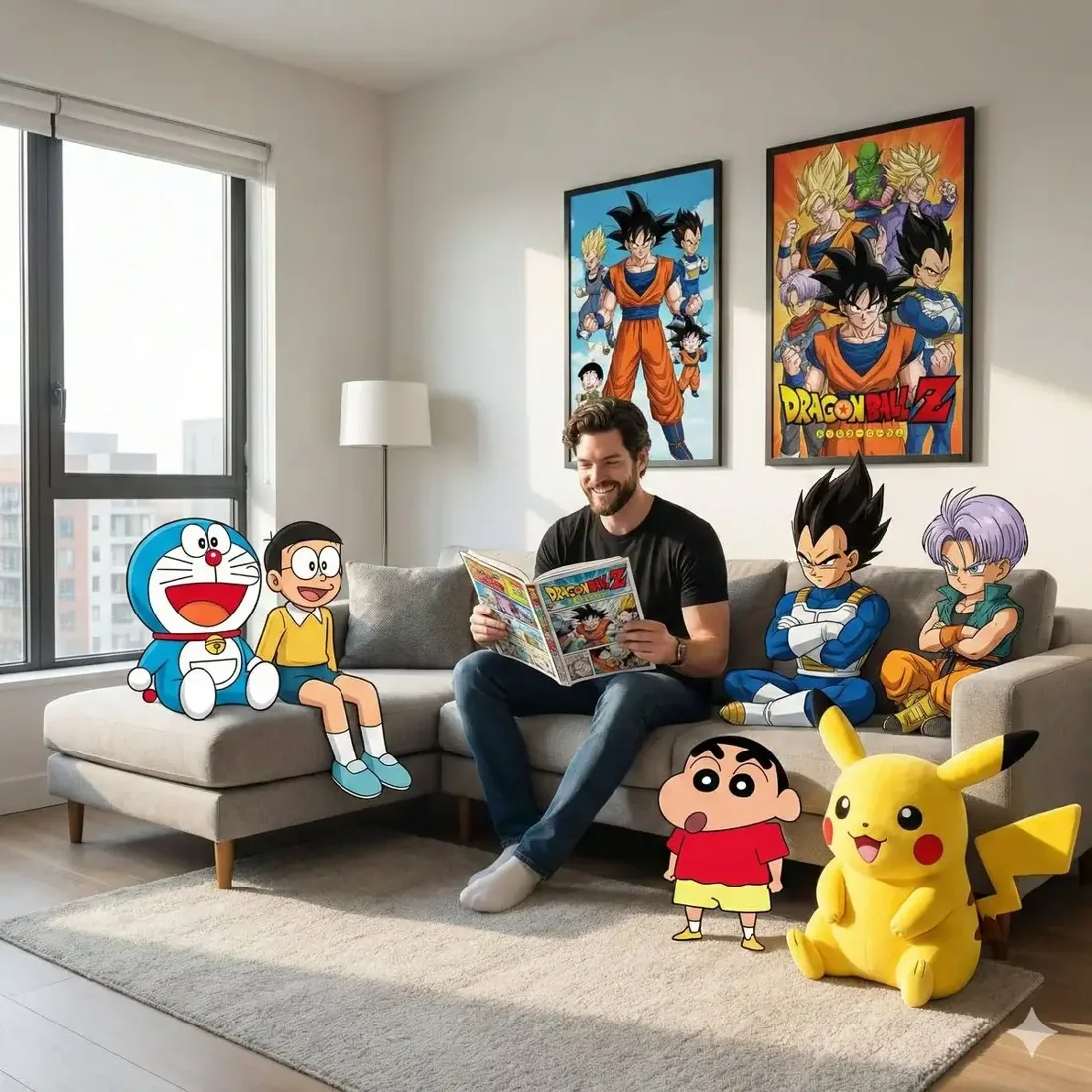
Keep a 2K draft, then change one instruction for the next image. Compare the framing and colour treatment before requesting a 3K version of a direction you want to develop.
A size change can affect the quoted credits; review the displayed quote each time.
| Model option | Output sizes | Aspect ratios | Format choices |
|---|---|---|---|
| Seedream 5.0 Lite | 2K, 3K | 8 fixed ratios | 1:1 · 16:9 · 9:16 |
Product scenes and visual concepts with the Lite option.
2K, 3K are listed across the model options.
8 explicit ratios across these options, plus Auto.
1 model option on this page.
Describe the subject, viewpoint, setting and light source together.
Check the displayed quote after changing engine, size or quantity.
Review completed images with the conversation and project materials.
| Model option | Output tiers | Aspect ratios |
|---|---|---|
| Seedream 5.0 Lite | 2K, 3K | 8 explicit + Auto |
| Nano Banana 2.1 | 1K, 2K, 4K | 14 explicit + Auto |
| GPT Image 2.5 Flare | 1K, 2K, 4K | 10 explicit + Auto |
Explore a product with a surface, light source and props.
Specify the subject, pose and setting as one still image.
Use 21:9 for an extended scene with room around the focal point.
Prepare your input, choose the output, and review the result.
Write the subject, composition and style. Include exact wording if the image needs text.
Choose the model option, resolution and aspect ratio. Review the credit quote before submitting.
Check text and product details at full size. Save the image or use it as a reference for another edit.
Answers about inputs, settings and creating in Kivue.
Turn your brief or reference into an image. Choose settings and check the quote before generating.
Start creating