Poster layout
Reserve a headline area and review any generated text.
Create Seedream 5.0 Pro images in Kivue with 1K or 2K output. Choose from 8 explicit aspect ratios and describe the subject, scene and composition. This page opens the Pro engine directly, separate from the Seedream 5.0 Lite option.
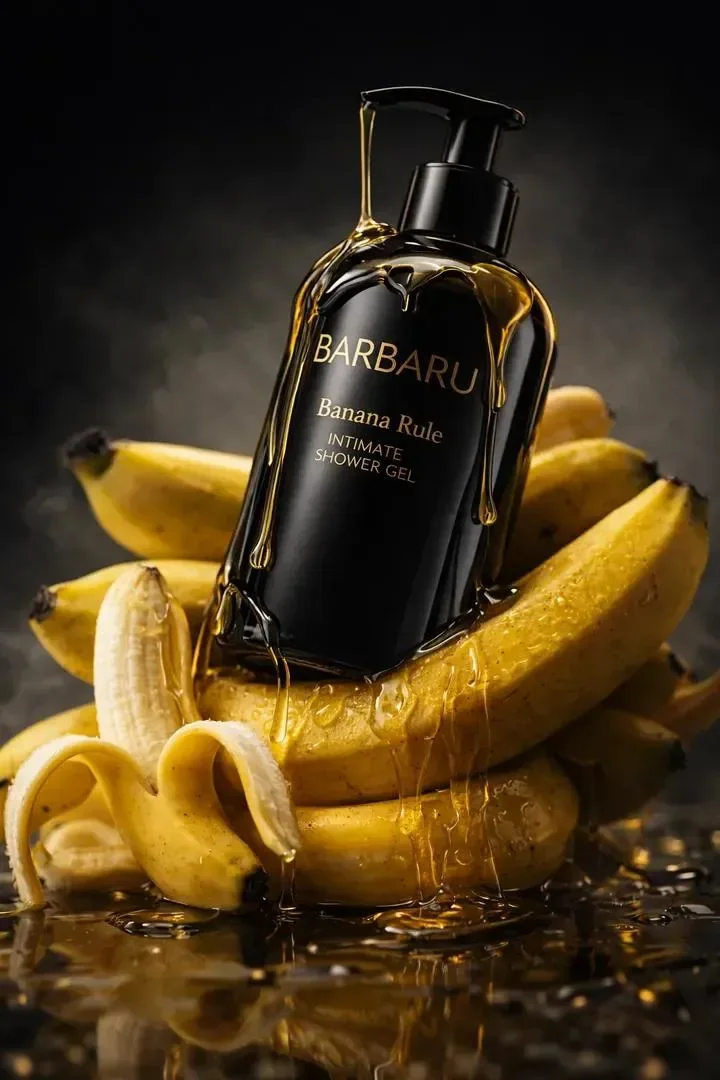
Describe the subject first, then specify the camera view, background and lighting. Choose a 1:1 product composition or a 3:4 portrait. Seedream 5.0 Pro offers 1K and 2K settings in Kivue.
Try: A glass fragrance bottle on dark stone, side lighting, product label facing front, empty background.
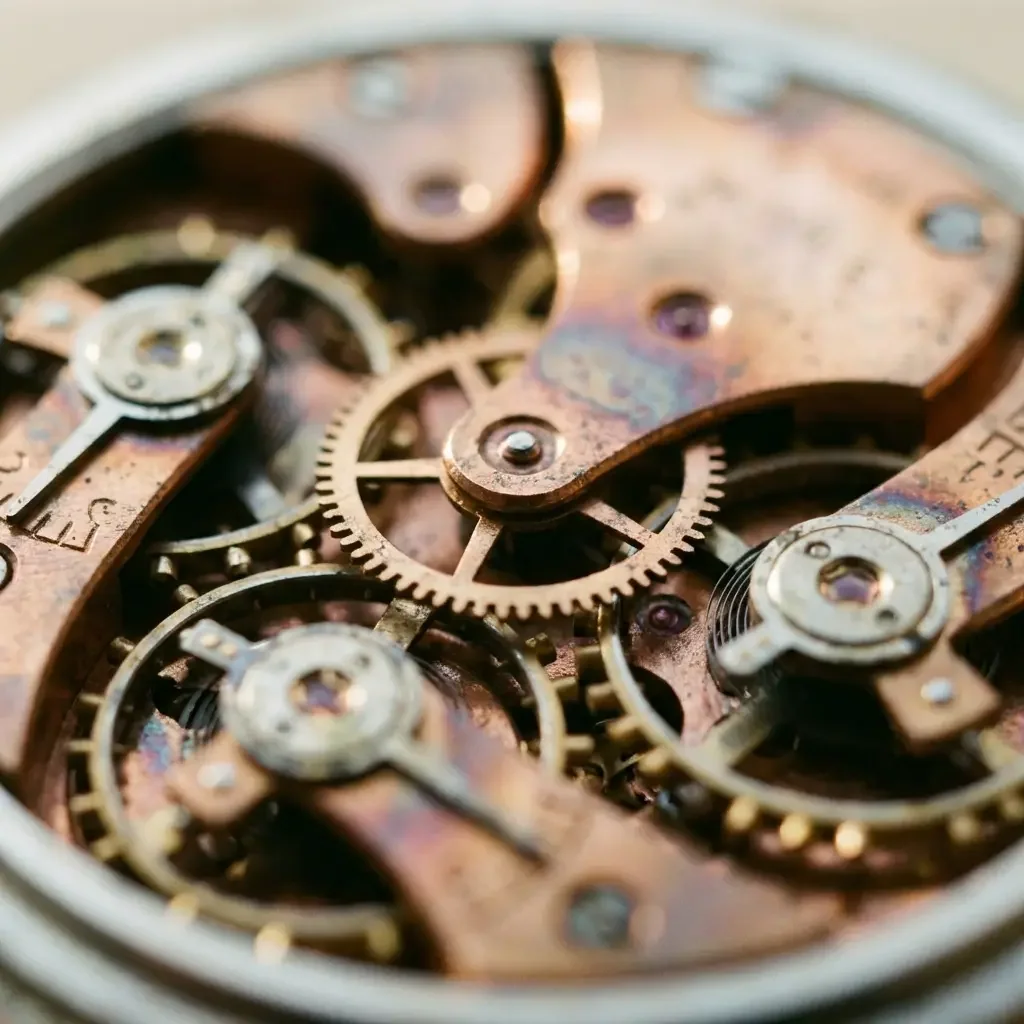
The connected Pro engine lists 8 explicit ratios, including 9:16, 16:9 and 21:9. A poster brief can separate the headline area from the subject; a banner can keep details away from crop edges.
Request exact lettering in quotation marks, then check every word in the delivered image.
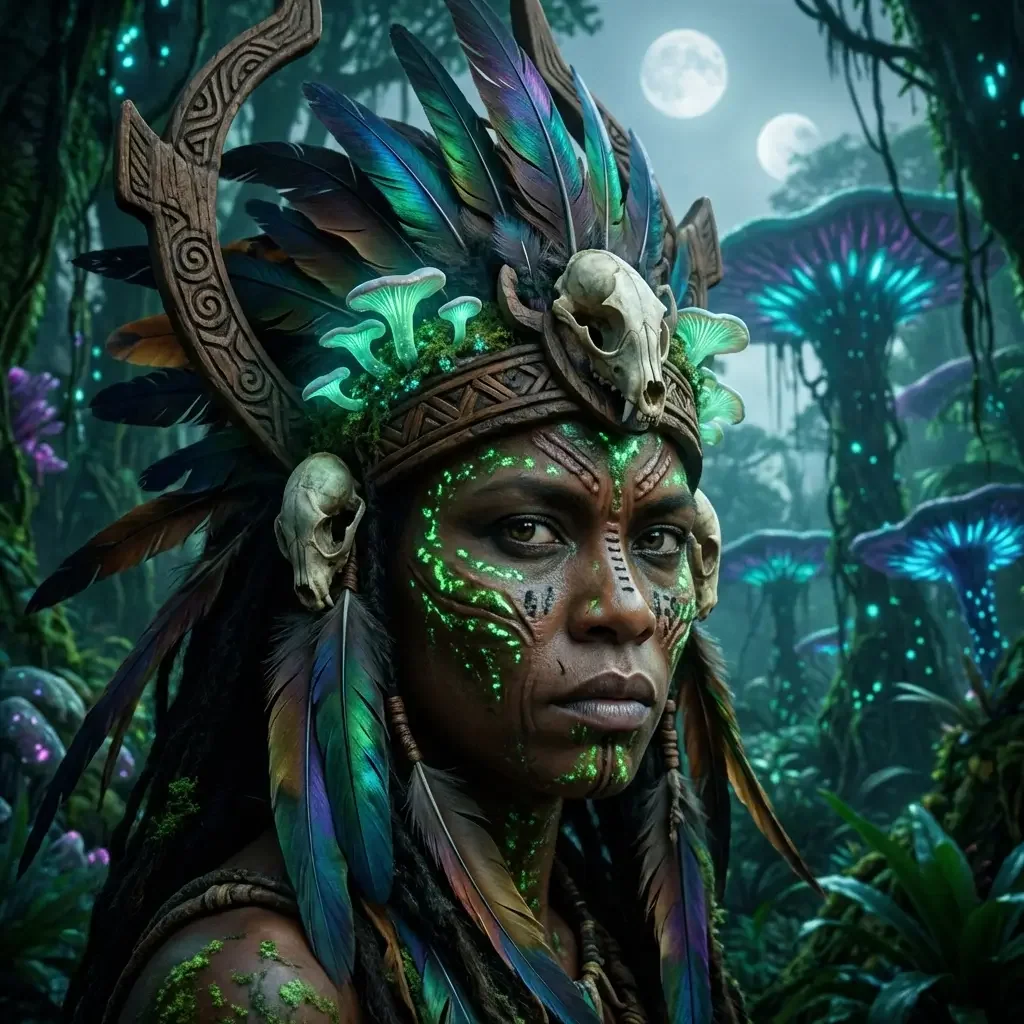
Pro lists 1K and 2K, while the connected Lite option lists 2K and 3K. Use the separate pages to start with the intended engine, and compare the quote at the size you need.
The current Pro entry does not list a 4K setting.
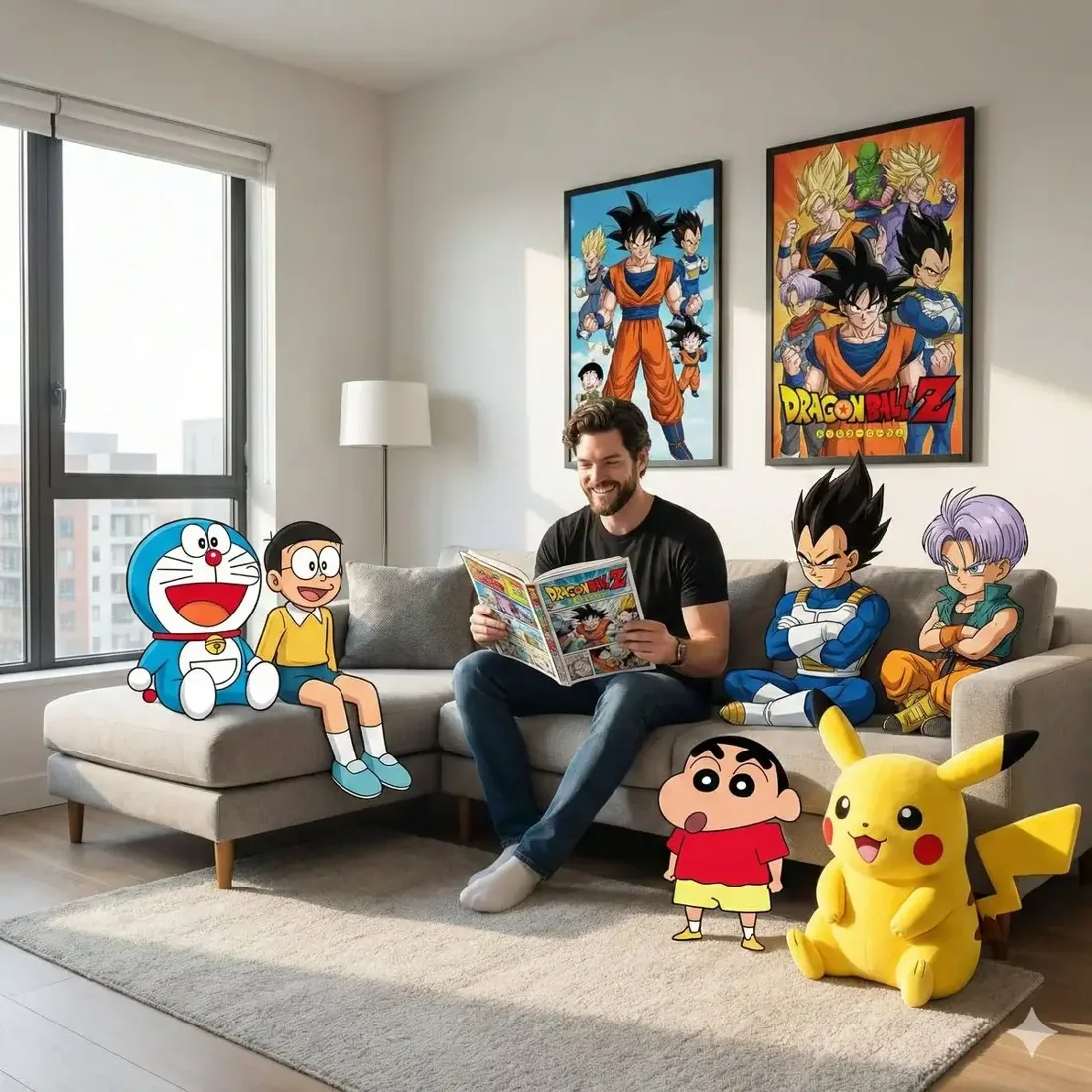
Start with a 1K concept when it matches the task, then select 2K when requesting the next version. Keep the intended crop and copy space in the brief so the output serves the final placement.
Check product identity, image text and edges before adding the result to a campaign.
| Model option | Output sizes | Aspect ratios | Format choices |
|---|---|---|---|
| Seedream 5.0 Pro | 1K, 2K | 8 fixed ratios | 1:1 · 16:9 · 9:16 |
A dedicated page for the connected Pro image engine.
1K, 2K are listed across the model options.
8 explicit ratios across these options, plus Auto.
1 model option on this page.
Describe the subject, viewpoint, setting and light source together.
Check the displayed quote after changing engine, size or quantity.
Review completed images with the conversation and project materials.
| Model option | Output tiers | Aspect ratios |
|---|---|---|
| Seedream 5.0 Pro | 1K, 2K | 8 explicit + Auto |
| Nano Banana 2.1 | 1K, 2K, 4K | 14 explicit + Auto |
| GPT Image 2.5 Flare | 1K, 2K, 4K | 10 explicit + Auto |
Reserve a headline area and review any generated text.
Compose a product, light source and supporting set.
Describe a subject, viewpoint and scene.
Prepare your input, choose the output, and review the result.
Write the subject, composition and style. Include exact wording if the image needs text.
Choose the model option, resolution and aspect ratio. Review the credit quote before submitting.
Check text and product details at full size. Save the image or use it as a reference for another edit.
Answers about inputs, settings and creating in Kivue.
Turn your brief or reference into an image. Choose settings and check the quote before generating.
Start creating